







lswifi is a CLI-centric Wi-Fi scanning tool for Windows, macOS, and Linux that provides more information about nearby Wi-Fi networks than built-in tools (e.g. netsh wlan show networks). Examples include Received Signal Strength Indicator (RSSI), showing security AKMs and ciphers, decoding 802.11 IEs, revealing 6 GHz Reduced Neighbor Reports, and more. With capable Wi-Fi adapters, lswifi can detect and show networks in 2.4 GHz, 5 GHz, and 6 GHz bands.
Note: Recent versions of Windows add OFDM rates, RSSI, AKMs and ciphers, QBSS, and limited RNR information to netsh wlan output. lswifi still offers additional information, parsing, filtering, and output options.
Note: The Python Scripts directory must be added to the PATH environment variable.
> python -m pip install lswifi

lswifi can scan on macOS through Apple's CoreWLAN framework. Install as usual; the CoreWLAN bindings come with it:
$ python3 -m pip install lswifi
macOS hides SSIDs, BSSIDs, and information elements unless Python has a Location Services grant. lswifi checks before a scan and, when the choice is not determined, asks and runs the run loop so the prompt can appear. If no prompt appears, add the Python interpreter lswifi runs under in System Settings > Privacy & Security > Location Services with the + button, turn it on, and run lswifi again. The warning prints that interpreter's path. RSSI and channel still show. The warning is on stderr, so --json is still one document. --get-interfaces prints Location Services: and the state. --get-interfaces --json includes location_authorization (authorized, denied, restricted, not_determined, not_registered, disabled, or unavailable).
lswifi needs a code-signed Python, such as the python.org installer; uv, Homebrew, and pyenv builds can't be granted. Enable Python in System Settings > Privacy & Security > Location Services. Without a grant, one warning names the state:
- denied: Python is turned off in Location Services.
- not determined: no choice yet; lswifi asks. If no prompt appears, add the interpreter named in the warning with the + button and turn it on.
- not code-signed: this Python can't be granted.
- turned off: Location Services is off system-wide.
- restricted: blocked by parental controls or device management.
- unavailable: CoreLocation couldn't load; reinstall lswifi.
Known limitations on macOS:
- On macOS, CoreWLAN has no public Capability Information field, so capability bits decode as 0 and
lswifican't tell open from WEP when there is no RSN or WPA element; those networks showNONE?. Windows reads the Privacy bit and is unaffected. - The PHY column comes from the information elements (
be/ax/ac/n/g/b/a). Supported rate set, link quality, and TSF are not exposed, so those columns are blank or--, and AP uptime is unavailable. Bus info is unsupported. - Channel width comes from the information elements when they are available. CoreWLAN's own width tops out at 160 MHz and is only used when the elements are hidden.
- CoreWLAN does not say whether the elements came from a beacon or a probe response.
beaconIntervalis reported in TU (100 for a typical AP), despite the API docs saying milliseconds.
--watchevents on macOS prints a timestamped line for each CoreWLAN event: power on/off, connect and disconnect, roams (current values plus old_bssid, old_freq, old_rssi and old_channel fields), reconnects (a connected line gets old_bssid when it lands on a different AP), SSID, channel, mode and country code changes, and notable signal quality changes. Scan cache updates (scan_cache_updated, several a minute) print only with --debug, in text and JSON. If your account is an admin, it also reads airportd's log (log stream, no sudo) to add roam requests (roam_requested with trigger, roam_target_bssid, and roam_target_channel/roam_reason when macOS logs them), deauth/disassoc reason codes, join timing, and system_sleep, system_wake (wake: dark|full) and lid_opened/lid_closed markers; otherwise those lines are skipped. macOS powers Wi-Fi off while asleep (including Power Nap dark wakes), so a disconnected/connected pair to the same BSSID next to a system_wake line is sleep, not the AP. Without Location Services, BSSIDs and SSIDs are left out but link and power events still print. Add --json for the same events as NDJSON on stdout (see Usage).
lswifi scans on Linux through nl80211 (generic netlink), the same kernel interface iw uses. It reads the raw information elements from the kernel and decodes them with the same parsers as Windows and macOS. No extra packages are needed; it works with drivers that use cfg80211/mac80211, which is nearly all of them.
$ python3 -m pip install lswifi
$ sudo lswifi
Triggering a scan needs root (CAP_NET_ADMIN). With sudo, lswifi starts a scan on each managed interface, waits for the kernel to finish (up to 30 seconds), and reads the results. Without it, lswifi warns and shows the kernel's cached results from the last scan anyone ran, which may be stale or incomplete. The kernel drops entries older than about 30 seconds, so if nothing has scanned recently the cache is empty and you get a warning saying so; nmcli device wifi rescan (no sudo needed on most desktops) fills it. The interface must be up (sudo ip link set wlan0 up); it does not need to be connected.
Known limitations on Linux:
- Only managed (station) and P2P client interfaces are scanned. Monitor, AP, and mesh interfaces are skipped.
- Whether 6 GHz networks show up depends on the adapter, its driver and firmware, and the regulatory domain (
iw reg get). When the adapter lists a 6 GHz band,lswifiasks the kernel to also probe 6 GHz APs found in Reduced Neighbor Reports. - The scan cache is shared with NetworkManager, iwd, and wpa_supplicant, so results include what they saw. A scan from
lswifidoes not use NetworkManager's scan MAC randomization setting. Scanning while connected can briefly pause traffic. - Some drivers report signal only on a driver-specific 0-100 scale. Those networks show an unknown RSSI and are not filtered by
-t. - nl80211 has no PHY type or link quality field. The PHY column comes from the information elements (
be/ax/ac/n/g/b/a). - Bus info comes from sysfs, and Transmit Power is shown only when the driver reports it.
--supportedis not available on Linux.- Some drivers keep reporting the last channel while an interface is down;
lswifiignores it when the interface is down.
--watchevents on Linux listens to the nl80211 mlme and scan multicast groups and prints a timestamped line for each connect, failed connect, roam, disconnect (with the reason code and whether it was locally generated), port authorized (the 4-way handshake is done), and channel switch. auth_failed prints when the AP rejects authentication (for example a wrong SAE password) or authentication times out, and assoc_failed when association times out; both carry the AP's bssid, and status_code/status_text or timed_out. An association the AP rejects is connect_failed. When the kernel runs the whole connection itself (a CONNECT request), connect_failed can follow auth_failed or assoc_failed for the same attempt. Scans print by default, including the station's own background scans: scan_started (with the frequency count when the kernel sent one), scan_complete (with the BSSID count), and scan_aborted. Those lines keep the current association (BSSID or AP MLD, frequency, and links) while the interface is associated, and leave those fields out when it is not. A roam stays the separate disconnected and connected lines. connected always adds roam (yes or no): yes when a locally generated disconnect from a different AP on the same SSID landed within about two seconds, or when the kernel sent a roam. A roam also adds roam_type (ft, pmksa, sae, or full, when the authentication frame and the reassociation request show which) and roam_ms from the disconnect, from the authentication start when there was no disconnect, or from the kernel roam when neither was recorded. port_authorized adds since_connect_ms, and roam_total_ms when that association was a roam: from the disconnect, or from the latest authentication or roam time when the kernel reported the roam itself. In --json, roam is a boolean on every connected event; roam_type, roam_ms, since_connect_ms, roam_total_ms, and scan_frequency_count are left out when they do not apply. The scan-finished event is scan_complete (the same name Windows uses; it used to be scan_cache_updated, and only with --debug). Joining these groups does not need root. Add --json for the same events as NDJSON on stdout (see Usage).
Output nearby Wi-Fi networks:
> lswifi
Output nearby Wi-Fi networks that have a detected signal of -60 dBm or stronger:
> lswifi -t -60
Output only networks that match ENCOM (partial match support):
> lswifi -include ENCOM
Output verbose information (including Information Elements) for BSSID 00:00:00:00:00:00 (exact match):
> lswifi -ies 00:00:00:00:00:00
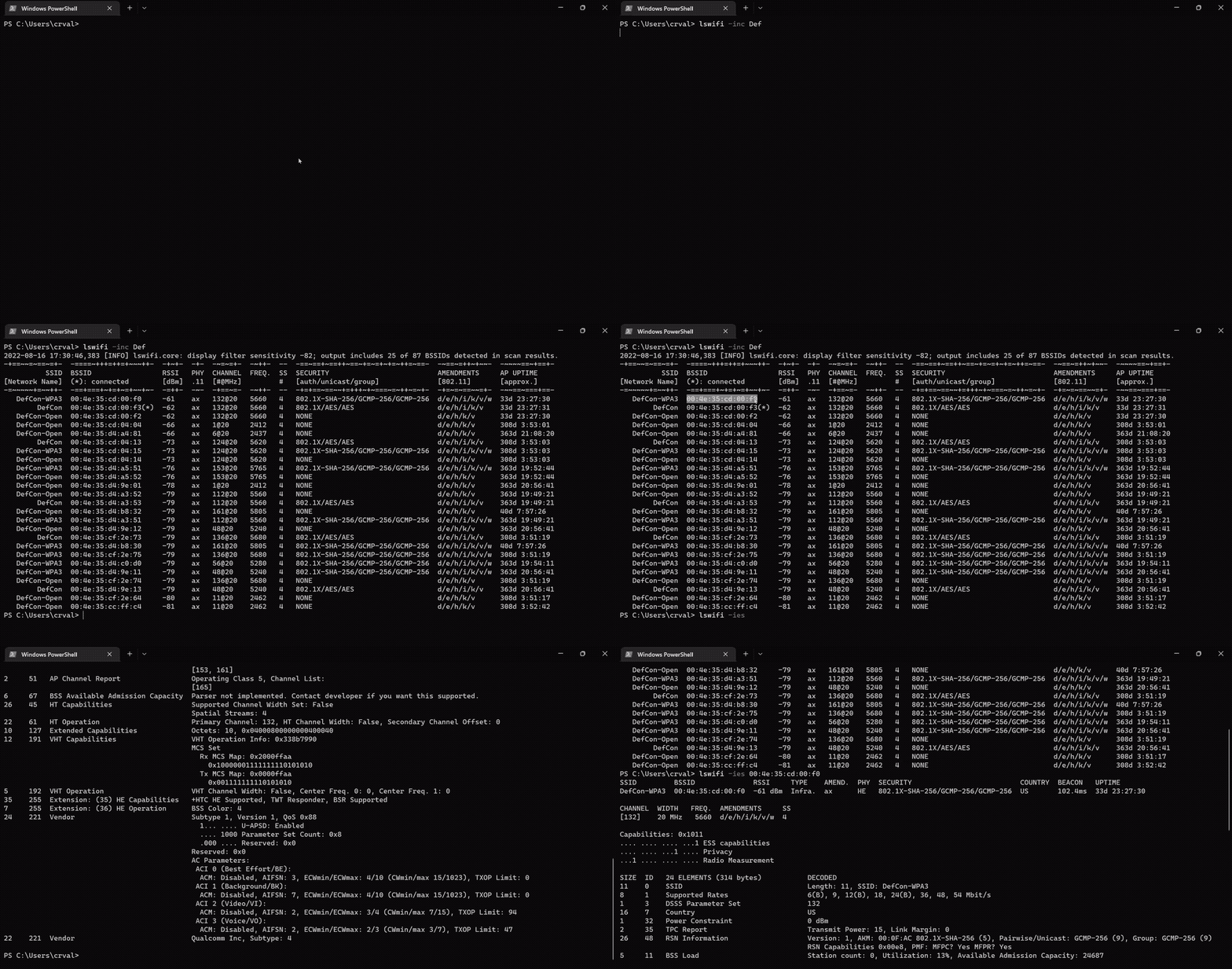
Print help information:
> lswifi -h
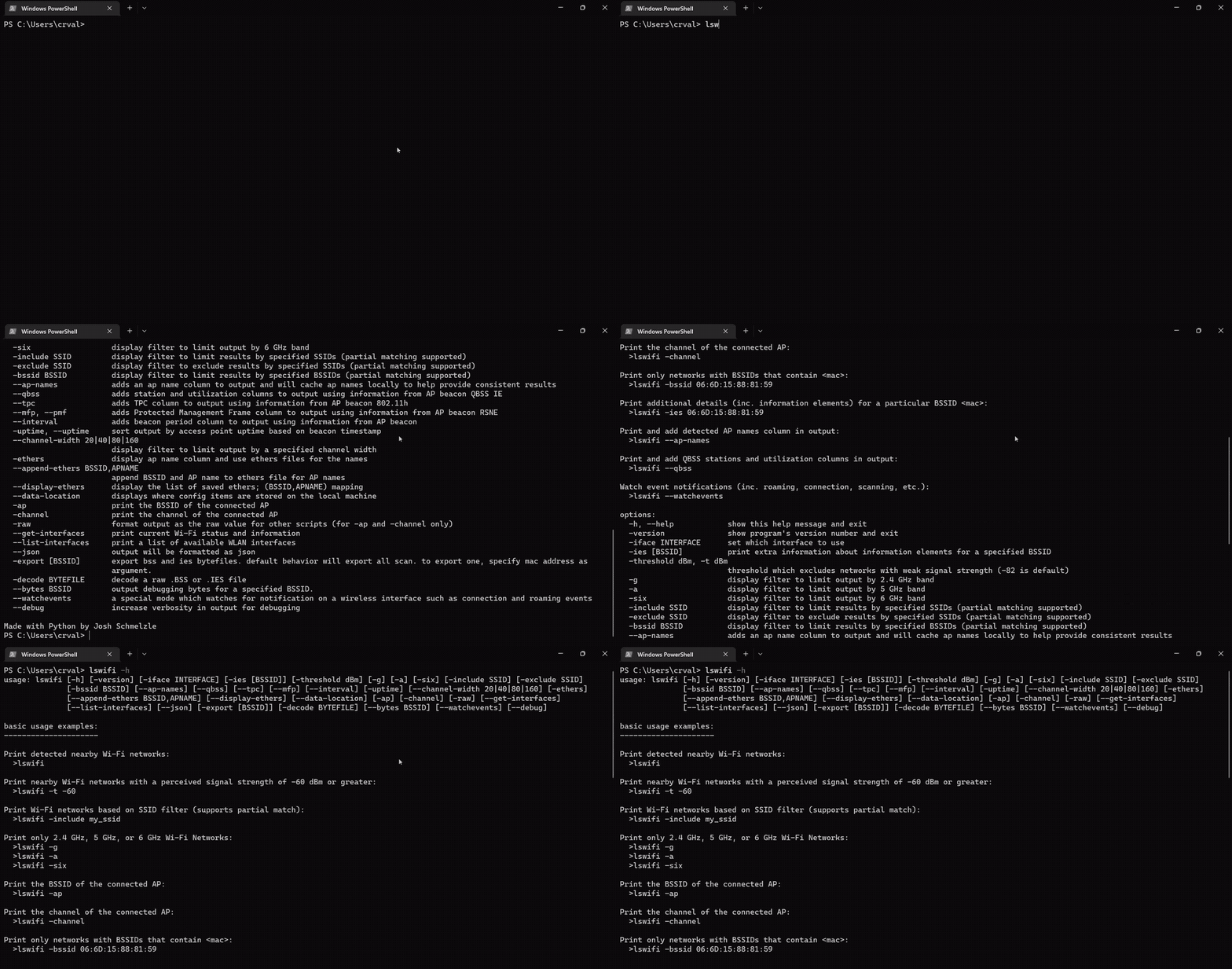
Print and add detected AP names column in output:
> lswifi --ap-names
Print and add detected AP names and QBSS column in output (try adding --mfp or --tpc too!):
> lswifi --ap-names --qbss
Print an alternative table for BSSes which may contain 6 GHz Reduced Neighbor Reports:
> lswifi -rnr
Watch event notifications (inc. roaming, connection, scanning, etc.):
> lswifi --watchevents
Add --json to get one JSON object per event on stdout (NDJSON) instead of log lines; logging stays on stderr, --syslog still gets the text line, and no file is written:
> lswifi --watchevents --json
{"timestamp": "2026-10-22T15:41:07.512-04:00", "interface_mac": "aa:bb:cc:dd:ee:ff", "event": "roamed", "bssid": "11:22:33:44:55:66", "freq_mhz": 5180, "ssid": "corp", "rssi": -52, "channel": 36, "width_mhz": 80, "band": "5 GHz", "tx_rate_mbps": 864, "old_bssid": "11:22:33:44:55:77", "old_freq_mhz": 5745, "old_rssi": -71, "old_channel": 149, "old_width_mhz": 80, "old_band": "5 GHz"}
Every object has timestamp (local time with UTC offset, like the scan export), interface_mac and event, then bssid, freq_mhz, ssid and rssi when known, then event-specific keys such as channel, width_mhz, band, noise, tx_rate_mbps, scan_bssid_count, scan_frequency_count, old_* values, reason_code/reason_text, roam, roam_type and *_ms join timing. Keys that are unknown or do not apply are left out rather than set to null. Numbers are numbers. If the SSID is not valid UTF-8, ssid uses replacement characters and ssid_hex has the raw octets.
Export scan results to pcap:
> lswifi -export
To enable PowerShell tab completion for lswifi, run the following command in PowerShell:
lswifi completion powershell | Out-String | Invoke-Expression
To make this permanent, add the above command to your PowerShell profile. To find and edit your profile:
# View your profile location
$PROFILE

# Add the completion script to your profile
lswifi completion powershell | Out-String | Invoke-Expression >> $PROFILE

# Or edit manually
notepad $PROFILE
Then restart PowerShell or reload your profile:
. $PROFILE
positional arguments:
  {completion}          commands
    completion          Generate shell completion script

options:
  -h, --help            show this help message and exit
  -version, --version, -V
                        show program's version number and exit
  -n, --scans #         set how many scans to do before exiting
  --time #              set test in seconds to perform scans for
  -i, --interval #      seconds between scans
  -ies [BSSID]          print extra information about information elements for a specified BSSID
  -threshold, -t -82    threshold which excludes networks with weak signal strength from results (-82 is default)
  -all                  remove threshold filtering which excludes results with weaker signal
  -g                    display filter to limit output by 2.4 GHz band
  -a                    display filter to limit output by 5 GHz band
  -six                  display filter to limit output by 6 GHz band
  -include, -inc SSID   display filter to limit results by specified SSIDs (partial matching supported)
  -exclude, -exc SSID   display filter to exclude results by specified SSIDs (partial matching supported)
  -bssid, -bss BSSID    display filter to limit results by specified BSSIDs (partial matching supported)
  --ap-names            adds an ap name column to output and will cache ap names locally to help provide consistent results
  --qbss                adds station and utilization columns to output using information from AP beacon QBSS IE
  --tpc                 adds TPC column to output using information from AP beacon 802.11h
  --period              adds beacon period column to output using information from AP beacon
  --uptime, -uptime     sort output by access point uptime based on beacon timestamp
  -rnr, --rnr           special mode to create an alternate table based on RNR results
  --channel-width 20|40|80|160|320
                        display filter to limit output by a specified channel width
  -ethers               adds an ap name column to output and use an ethers file for the ap names
  --append-ethers BSSID,APNAME
                        append BSSID and AP name to ethers file for AP names
  --display-ethers      display the list of saved ethers; (BSSID,APNAME) mapping
  --data-location       displays where config items are stored on the local machine
  -ap                   print the BSSID of the connected AP
  -channel              print the channel, band, and frequency of the connected AP
  -raw                  format output as the raw value for other scripts (for -ap and -channel only)
  --get-interfaces      print current Wi-Fi status and information
  --list-interfaces     print a list of available WLAN interfaces
  --json [JSON]         output will be formatted as json
  --indent 4            JSON output will be formatted with pretty print with provided indent level
  --csv [CSV]           output will be formatted as csv
  -exportraw, -expraw [BSSID]
                        export raw bss and ies bytefiles. default behavior will export all from a scan. to export only one, provide full mac address of the BSSID as argument.
  -export, -exp [BSSID]
                        export scan results to pcapng file. default behavior will export all from a scan. to export only one, provide full mac address of the BSSID as argument.
  -path EXPORT_PATH     output path for -export, and directory for -exportraw (a .pcapng path uses its directory); defaults to the app data directory
  -decoderaw BYTE_FILE  decode a raw .BSS or .IES file
  -decode PCAP_FILE     parse scan results from pcap/pcapng file. by default shows all networks in the file, can be combined with filtering options.
  --bytes BSSID         output debugging bytes for a specified BSSID found in scan results.
  --watchevents         a special mode which watches for notification on a wireless interface such as connection and roaming events
  --syslog <server IP>  syslogs events from --watchevents to a remote syslog server
  --debug               increase verbosity for debugging
Here is how to upgrade lswifi using pip3 when there is a new version available.
First check where and if the executable exists:
> where.exe pip3
C:\Users\jsz\AppData\Local\Programs\Python\Python311\Scripts\pip3.exe
C:\Users\jsz\AppData\Local\Programs\Python\Python310\Scripts\pip3.exe

# OR

> where.exe python
C:\Users\jsz\AppData\Local\Programs\Python\Python311\python.exe
C:\Users\jsz\AppData\Local\Programs\Python\Python310\python.exe
C:\Users\jsz\AppData\Local\Microsoft\WindowsApps\python.exe
C:\msys64\mingw64\bin\python.exe
Let's install and upgrade lswifi to the latest version available:
> pip3 install --upgrade lswifi

# OR

> python -m pip install -U lswifi
Check the version installed:
> lswifi -vLooking to install a specific version of lswifi?
python -m pip install lswifi==0.1.47.post1-
What OSes and Python versions are required to run
lswifi?- Windows 10+ and Python 3.11 are the current minimum versions I'm willing to support (subject to change based on the official Python release cycle).
- Windows 11 and a capable interface is required for 6 GHz support. Don't have 6 GHz capable interface? Try
lswifi -rnrwith multi-band 6 GHz APs nearby.
-
Can you get add information from radio tap headers?
- Currently there is not a way to get radio tap headers from Native Wifi wlanapi.h.
-
Do I need to install
lswifiin a virtual environment (venv)?- Only if you want to. Installing in a venv is optional and not necessary.
lswificurrently has zero dependencies outside of the included standard library with Python.
- Only if you want to. Installing in a venv is optional and not necessary.
-
When I try to run
lswififrom my Windows terminal I see an error that says'lswifi' is not recognized as an internal or external command operable program or batch file.?- Either
lswifiis not installed, or the Python Scripts directory is not in the PATH environment variable. - To fix ensure the Scripts directory is included in the PATH environment variable and
lswifi.exeexists in said folder. - Here is an example for how to find the Scripts directory (this directory needs to be on the PATH):
> python
Python 3.13.3 (tags/v3.13.3:6280bb5, Apr  8 2025, 15:28:43) [MSC v.1943 64 bit (ARM64)] on win32
Type "help", "copyright", "credits" or "license" for more information.
>>> import os,sys
>>> os.path.join(sys.prefix, 'Scripts')
'C:\\Users\\jsz\\AppData\\Local\\Programs\\Python\\Python313-arm64\\Scripts'
- Either
-
What does "Not a monitor mode packet capture" in
<file>.pcapngcapture file properties mean?- Wi-Fi frames captured via Windows Native Wifi API (wlanapi.dll). Not a traditional direct over-the-air monitor mode capture; data is processed by Windows driver stack which may combine or modify information from beacons and probe responses.
Want to contribute? Thanks! Please take a few moments to read our contributing notes and check out the authors and credits here.
