

Dwains Dashboard Next is the next generation of Dwains Dashboard for Home Assistant.
It installs as a Home Assistant dashboard through HACS. On a normal HACS setup it does not require a custom integration, Python files, YAML setup, or manual file uploads.
See this as Dwains Dashboard v4: totally rebuilt from scratch, with a completely new design and new features.

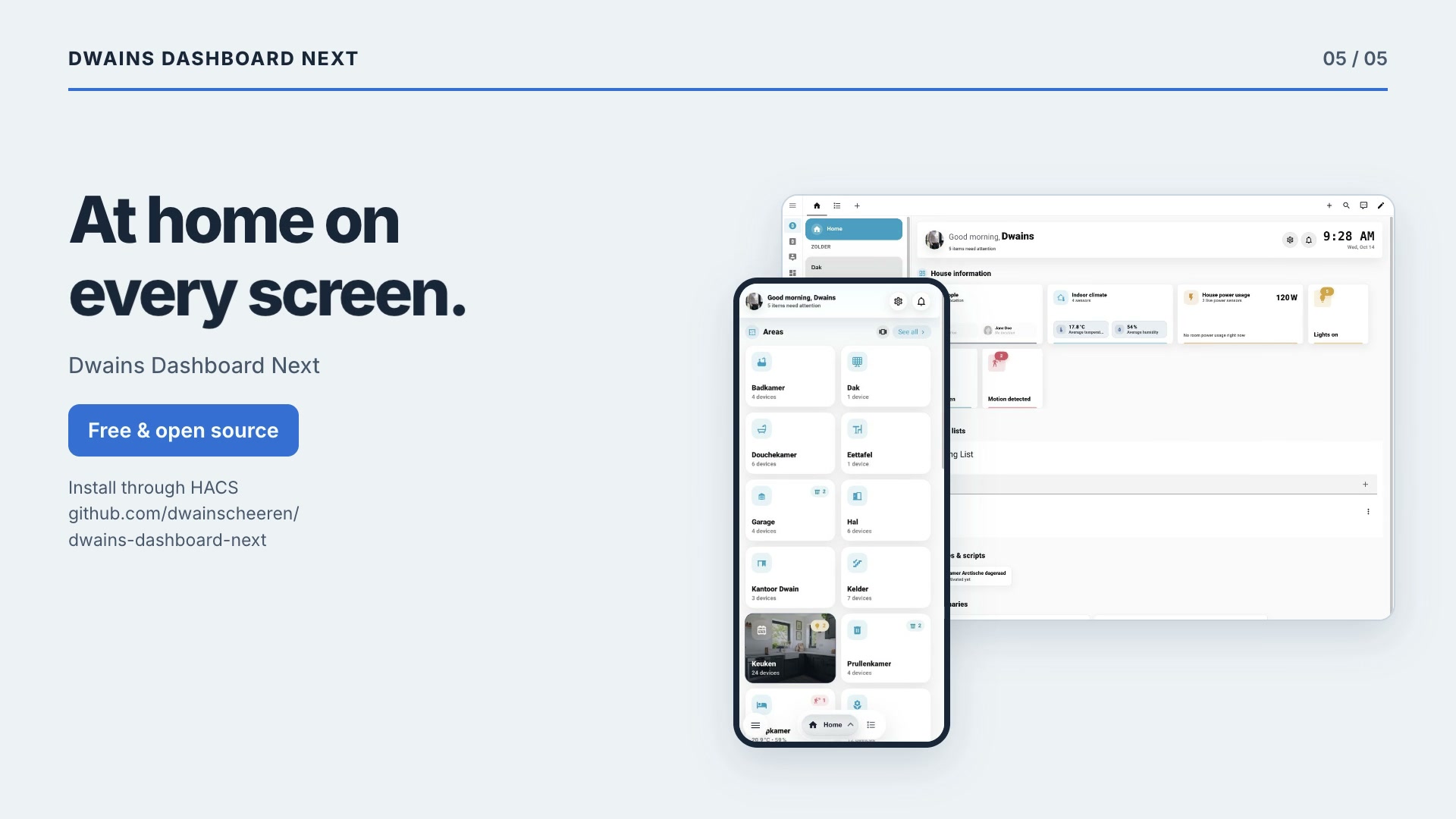
Watch the launch video · 22 seconds · 1080p · Music
Current screenshots from v1.11.0, captured in October 2026. The interface is in English; room and entity names come from the Home Assistant setup.


See the screenshot gallery for room controls, wall tablet settings and more views. Camera previews are hidden in the current captures.
- Documentation website
- Documentation home
- Installation
- Getting started
- Navigation
- Dashboard settings
- Home page
- Areas
- Devices
- Blueprints
- Custom cards
- User permissions
- Screenshots
Current release: 1.12.2
- Chat and feedback: Dwains Dashboard Discord
- Support development: Buy Me a Coffee
- Support development: PayPal
- Home Assistant 2026.5.0 or newer
- HACS
Use the HACS button above or follow the full installation guide.
HACS normally adds the Dwains Dashboard Next JavaScript resource automatically. If your Home Assistant setup uses YAML-managed Lovelace resources, HACS cannot update those resources automatically. In that case the dashboard file is installed, but Dwains Dashboard Next will not appear in the Add dashboard dialog until you add the resource yourself.
Add this to the existing lovelace: section in configuration.yaml:
lovelace:
  resources:
    - url: /hacsfiles/dwains-dashboard-next/dwains-dashboard-next.js
      type: module
Do not create a second lovelace: section if one already exists. Merge the resources: entry into the existing one, then restart Home Assistant or reload Lovelace resources and hard-refresh the browser.
- Creates an automatic dashboard based on Home Assistant areas, devices, entities and floors.
- Registers itself in the native Add dashboard dialog.
- Runs fully in the frontend as a JavaScript dashboard resource.
- Does not require installing a Home Assistant integration.
npm install
npm run type-check
npm run build
The production dashboard file is generated at:
dist/dwains-dashboard-next.js
Editors, dialogs and languages are split into separate files in dist/chunks/ and are only loaded when needed. When testing a build in your own Home Assistant, copy the whole dist/ folder, not only the main file.
Unit tests use Vitest and live in tests/:
npm test            # run all tests once
npm run test:watch  # re-run tests on every change
CI runs npm run type-check, npm run i18n:check, npm test and npm run build on every push and pull request.
Automated desktop and mobile screenshots can be generated against a running Home Assistant instance:
npm run screenshots:install
DD_SCREENSHOT_USERNAME=your-user DD_SCREENSHOT_PASSWORD=your-password npm run screenshots
Useful options:
DD_SCREENSHOT_BASE_URL=http://localhost:8123
DD_SCREENSHOT_DASHBOARD_PATH=/dd-next
DD_SCREENSHOT_AREA_ID=living_room
DD_SCREENSHOT_OUTPUT_DIR=screenshots/generated
DD_SCREENSHOT_THEMES=light,dark
DD_SCREENSHOT_FULL_PAGE=true
DD_SCREENSHOT_COLLAPSE_HA_SIDEBAR=false
DD_SCREENSHOT_PRIVACY_CAMERAS=false
DD_SCREENSHOT_PRIVACY_CAMERA_DIR=assets/demo-cameras
If DD_SCREENSHOT_DASHBOARD_PATH is not set, the script tries to find the Dwains Dashboard Next dashboard automatically. Screenshots are written by theme, viewport and page, for example screenshots/generated/light/desktop/home.png. By default the script captures home, devices, dashboard settings and a few settings detail pages. The Home Assistant sidebar is collapsed by default for desktop screenshots; set DD_SCREENSHOT_COLLAPSE_HA_SIDEBAR=false to keep it open. Camera feeds are replaced with demo images by default so private camera views do not end up in screenshots. Set DD_SCREENSHOT_PRIVACY_CAMERAS=false only when you explicitly want real camera images.
An automated dashboard tour video can be recorded against the same running Home Assistant instance:
npm run video:install
DD_VIDEO_USERNAME=your-user DD_VIDEO_PASSWORD=your-password npm run video
By default this records a mobile light-mode walkthrough and saves it as videos/generated/light/mobile-tour.webm. Set DD_VIDEO_THEMES=light,dark to create a separate video for each theme.
Useful options:
DD_VIDEO_BASE_URL=http://localhost:8123
DD_VIDEO_DASHBOARD_PATH=/dd-next
DD_VIDEO_AREA_ID=living_room
DD_VIDEO_OUTPUT_DIR=videos/generated
DD_VIDEO_VIEWPORTS=mobile,desktop
DD_VIDEO_THEMES=light,dark
DD_VIDEO_TRIM_START_SECONDS=6
DD_VIDEO_COLLAPSE_HA_SIDEBAR=false
DD_VIDEO_PRIVACY_CAMERAS=false
DD_VIDEO_PRIVACY_CAMERA_DIR=assets/demo-cameras
The video tour opens the home page, scrolls down and back up, opens an area, scrolls the area, opens and closes an entity dialog, opens the devices page, opens a device group and then opens dashboard settings. The first 6 seconds are trimmed by default to remove login/loading time; set DD_VIDEO_TRIM_START_SECONDS=0 to keep the full recording. Desktop recordings collapse the Home Assistant sidebar by default. Camera feeds are replaced with demo images by default; set DD_VIDEO_PRIVACY_CAMERAS=false only when recording a private/local video where real camera images are wanted.
This repository is structured as a HACS Dashboard plugin.
The dashboard file is:
dist/dwains-dashboard-next.js
HACS downloads everything under dist/, including the dist/chunks/ folder that the dashboard file loads on demand.
Dwains Dashboard Next is released under the MIT License.
See LICENSE for the full license terms.