
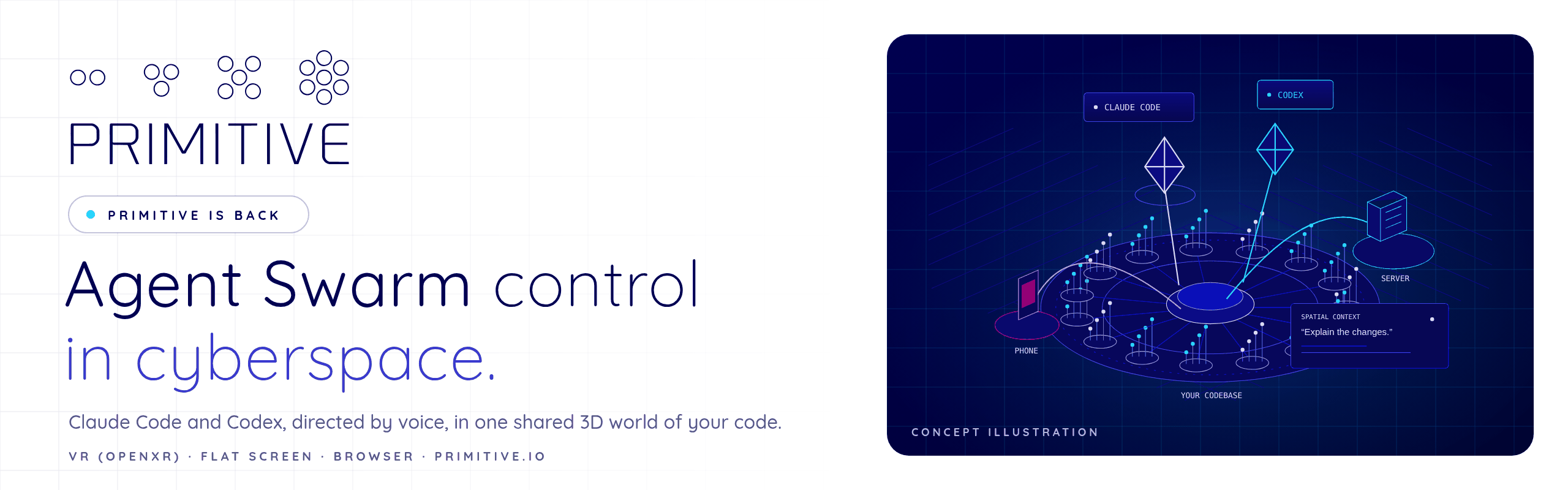


Primitive puts a codebase, its running behaviour and the coding agents working on it into one shared 3D world, in VR or on a screen. Talk to Claude Code and Codex; they answer by pointing at the code, and every change they make shows up in the world as it happens.
- The swarm. Every machine island and project pad has Start Claude here / Start Codex here. Agents get what you are pointing at as context, edit the code, and narrate the change while highlighting each element they touched.
- Every machine is an island. The machine that holds the source is the home island; phones, servers and headsets where the code runs are satellite islands. Other proxies on your LAN or in the cloud appear as machine islands with their agents.
- Runtime and diffs. Traces of real workflows with every call, object creation and data mutation; source compared against Git HEAD at method level.
- Anywhere, together. OpenXR headsets, a flat screen or the browser viewer. Everyone connected sees the same world, playback position, highlights and agents.
primitive.io · Request a demo or developer access · Proxy documentation (access required) · Unity viewer (access required) · support@primitive.io
Watch the original Primitive film →
The original film shows Primitive’s immersive code visualization and collaboration. The relaunch builds on that foundation.
This guide covers the current developer build. It requires access to the proxy and viewer repositories; this repository is the public instruction page. Those repositories are not currently publicly accessible: request developer access before following the clone instructions. Earlier Steam, Viveport, and SideQuest releases are the legacy immersive development environment, and do not provide the agent workspace described here. Their original manual is preserved at the end.
| Capability | In the workspace |
|---|---|
| Direct coding agents | Start installed Claude Code or Codex in a project; speak or type with selection and pointing context; follow agent highlights and narration. |
| Understand code | Explore radial maps of directories, files, classes, methods, and fields; inspect method-level changes against Git HEAD. |
| Follow execution | Play recorded workflows, step through call stacks, and inspect captured object and data changes. Capture detail varies by tracer. |
| Connect locations | See the PC, phone, server, and headset as islands, with requests between them; connect other proxy machines. |
| Inspect graphs | Open Blueprint-style class graphs or the flow of a recorded call, with typed pins and data wires. |
| Keep outputs nearby | Bring the agent test browser, monitors, windows, and an attached Android phone into VR as screen panels. |
| Work together | Connect VR, desktop, and browser viewers to share the world, playback position, highlights, and agents. |
Prerequisites: granted repository access, Git, and the .NET 10 SDK. Authenticate GitHub with the account that has access. Python 3.9+ is needed to record Python traces, but the demo already includes recordings. For agents, install and authenticate Claude Code and/or Codex on the machine running the proxy.
After access is granted, clone and start the proxy:
git clone https://github.com/PRIMITIVE-IO/primitive-proxy.git
cd primitive-proxy
dotnet run --project src/Primitive.Proxy -- --demo
Open localhost:7420 for the browser viewer. The demo includes five sample workflows: ETL, a phone/API/SQLite flow, a state store, a threaded queue, and a headset game loop.
For the full desktop or VR viewer, clone primitive-env and open it in the Unity version recorded in its ProjectSettings/ProjectVersion.txt. In Unity select Primitive → Open Viewer Scene, then Play, while the proxy is running. With an OpenXR headset connected it starts in VR; otherwise it runs on a flat screen.
Run from the proxy repository, replacing the example path:
dotnet run --project src/Primitive.Proxy -- --root C:\code\my-app--root is repeatable. Source structure is analyzed with tree-sitter for C#, Python, TypeScript/TSX, JavaScript, Java, Go, Rust, C, C++, Ruby, PHP, Scala, and Bash. Files are watched and compared against Git HEAD at method level.
Use --fs C:\path\to\workspace to map a folder tree and discover projects, or --analyses C:\path\to\analyses to load legacy FileParser databases. The proxy README explains analysis caching, language support, and optional FileParser setup.
- Open a project and select an element you want to work on.
- Use Start Claude here / Start Codex here on a project pad, or + Claude / + Codex in the viewer menu.
- Press Enter to type, or hold V to speak on the desktop. On Quest, hold a right thumb–middle-finger pinch, speak, then release.
- Try “claude, explain this method” or “codex, add a test for this.” The agent receives your selection and pointing context.
- Ask “explain the changes” to walk through the diff with highlights.
The optional voice assistant needs an OpenAI key file configured on the proxy:
dotnet run --project src/Primitive.Proxy -- --root C:\code\my-app --openai-key-file C:\secrets\openai-key.txtThe key is read by the proxy and is not sent to viewers. Without it, supported command phrases route navigation, playback, and named agent requests; voice transcription depends on the viewer or configured speech-to-text tool.
Supported permission requests appear as notices and can be answered with Approve / Deny or by voice. Approval behavior depends on the agent integration: the current Codex bridge uses workspace-write with approval policy set to never. Do not assume every agent action produces a prompt. Review the proxy documentation and your provider settings before connecting private code.
The developer viewer supports Quest hand tracking and passthrough. Building and sideloading requires Unity Android build support, a headset in developer mode, and Android platform tools.
-
Start the proxy with
--lan(add--rootor--demoand optional voice configuration):dotnet run --project src/Primitive.Proxy -- --demo --lan
-
In the Unity viewer project select Primitive → Quest → Build. Keep the proxy running so the build can fetch its local pairing. The output is
Builds/Quest/Primitive.apk. -
Connect the Quest by USB, allow USB debugging, and run these commands from the viewer repository:
adb install -r Builds/Quest/Primitive.apk
adb reverse tcp:7420 tcp:7420
adb shell am start -n com.primitive.viewer/com.unity3d.player.UnityPlayerGameActivity
USB reverse connects the headset to the proxy without a network route. Unplugged, the paired build uses the LAN addresses. Allow the proxy on your private network when prompted, and keep the PC and headset on the same network. See the viewer README (access required) for pairing, gesture details, and troubleshooting.
| Action | Full desktop viewer | Quest hands |
|---|---|---|
| Select | Click | Right thumb + index tap |
| Move around | WASD / Q / E; right-drag to look | Left thumb + index, hold and move the world |
| Scale / turn the world | Mouse wheel dollies the camera | Both thumbs + index, hold |
| Talk | Enter to type; hold V to speak | Right thumb + middle, hold; release to send |
| Open a graph | G | Right thumb + ring |
| Play / pause | Space | Left thumb + ring |
| Step through a trace | Left / right arrows | Playback controls in the menu |
| Back / clear selection | Esc | Left thumb + middle |
| Open the menu | Desktop HUD | Left palm toward you, thumb + index |
Browser controls differ from the full Unity desktop viewer. For the complete controls, panel gestures, and selection behavior, use the viewer README.
The demo traces work immediately. For your own Python workflow, from the proxy repository:
$env:PYTHONPATH = "tracers/python"
python -m primitive_trace --workflow checkout --location-kind server C:\code\my-app\app.py
Traces are written into the workflow root’s .primitive/traces/ folder and picked up by the proxy watching that root. Python capture includes calls, arguments, return values, object creation, field/container mutations, locals, and SQLite/file/HTTP I/O. See the Python tracer guide (access required) for capture setup.
Other services can send OTLP/HTTP JSON spans to http://localhost:7420/v1/traces. These provide span-level behavior rather than Python’s full mutation capture. Companion .NET and Unity tracing tools and a legacy trace converter are documented in their product repositories.
Say “show me the browser,” “open localhost 3000,” or “show my phone” to bring outputs into view. The agent test browser uses an isolated profile: use it for app testing, and avoid signing into real accounts. Physical monitor/window control is off by default and requires proxy configuration plus Allow control on the panel.
For additional viewers, start the proxy with --lan and follow its token pairing instructions. Shared viewers see the same world, highlights, playback, and agents. To connect another machine, follow Network: more machines in the proxy README; keep tokens in files and use TLS for public connections.
- No world: confirm the proxy is running, try the browser viewer locally, and check the Unity viewer connection.
- Agent cannot start: confirm its CLI is installed and authenticated on the proxy machine. The proxy accepts
--claude/--codexpaths when discovery fails. - No runtime: source analysis alone does not record execution. Load demo traces or capture a workflow using a supported tracer.
- Quest cannot connect: rebuild with the proxy running, check USB debugging and
adb reverse, then consult pairing instructions before switching to LAN.
Want a guided walkthrough or to explore a team pilot? Request a conversation or email john@primitive.io.
Legacy release manual — Vive, Rift, and GearVR
Primitive is available on Viveport and Steam for non-commercial use. If you're interested in using Primitive as part of a larger organization, please reach out to us at support@primitive.io.

In the environment.yaml file in
Steam Installation: C:\Program Files (x86)\Steam\steamapps\common\Primitive\PRIMITIVE_Data\StreamingAssets
Viveport Installation: C:\...\675c92c6-7df2-4ee3-b919-1bfbb6e5e8cc\...\Primitive\PRIMITIVE_Data\StreamingAssets
edit
localDirectories:
  directories:
     - C:\path\to\my\repo1
     - C:\path\to\my\repo2
Your folders containing files and source code will now be visible on the "Local" browser sphere.
In Primitive, there is a nested sphere containing analyses. Selecting an analysis will "land" you on the analysis.
Select the Return button to return to the global view.

The two wands have different functions in Primitive:
-
The Exploration Wand. In the dominant hand, the exploration wand is used to make selections and manipulate objects in the world. It features two pincers used to aim at selections. The pincers close when the user points to a selectable object.
A line comes out of the exploration wand which shows the direction the user is pointing in. The line locks on objects that can be selected. The trigger can be used to make selections.
-
The Runtime Wand. In the other hand, the runtime wand is used to view and control the program execution (supported projects only).

The two controllers have different functions in Primitive:
-
The Exploration Controller. In the right hand, the exploration controller is used to make selections and manipulate objects in the world.
A line comes out of the exploration controller which shows the direction the user is pointing in. The line locks on objects that can be selected. The trigger can be used to make selections.
-
The Runtime Controller. In the left hand, the runtime controller is used to view and control the program execution (supported projects only).
The GearVR headset contains a touchpad on the right side of the headset. The touchpad can be swiped, as well as pressed in each direction, up, down, left and right. Above the touchpad is a back button.
When looking at a selectable object with the GearVR, the object will indicate it can be interacted with. The object can be selected by tapping the center of the touchpad.
The GearVR Controller has the combined functions of the exploration controller and the runtime controller integrated together. The trigger is used for selection, the touchpad is used for scrolling and stepping, and the back button is used for escaping.
-
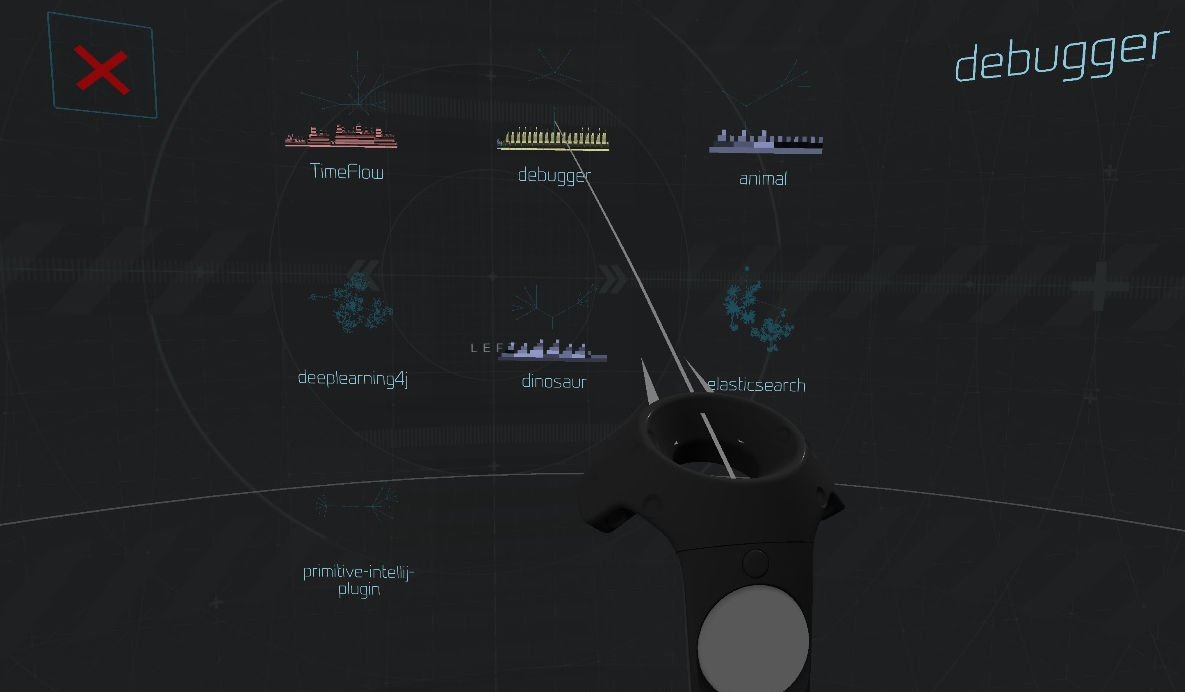
Select the Load new... button on the menu.

-
Point at any of the available projects for more information about that project.
-
Load a project by selecting it.


-
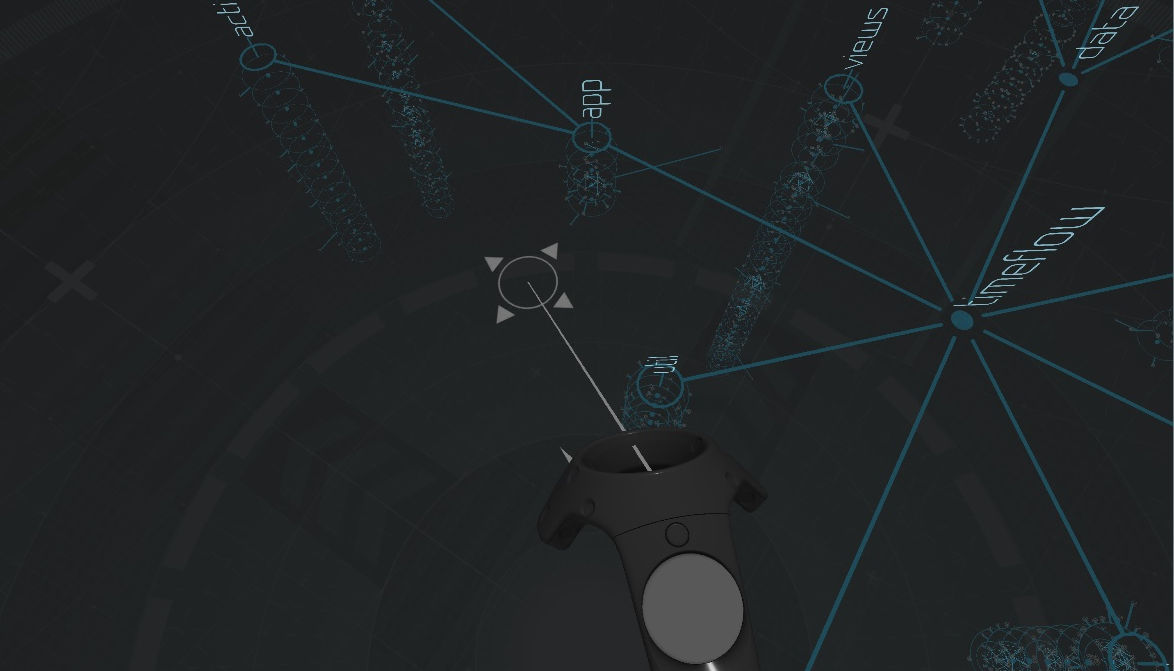
Aim at an empty spot on the ground.
-
Hold down the trigger on the exploration wand (on Vive) or controller (on Rift or GearVR Controller), then move the wand or controller to move the world.
-
Release the trigger to stop moving the world.

- Holding down the GearVR touchpad for 3 seconds will allow the user to teleport to the point that they are looking at on the ground.
-
Aim at a directory. Select the directory to open it.
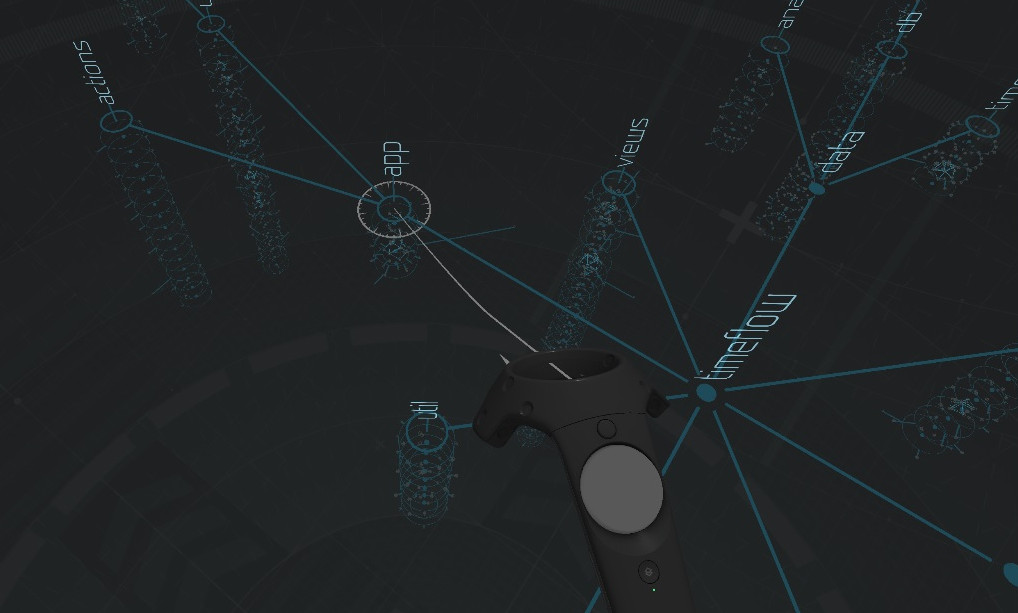
-
The first class in the directory will be selected and will have an arrow next to it. Scroll through the classes with the up and down buttons on the exploration wand trackpad (on Vive or GearVR Controller), by pressing up and down on the exploration controller joystick (on Rift), or by swiping up and down on the GearVR touchpad (on GearVR).
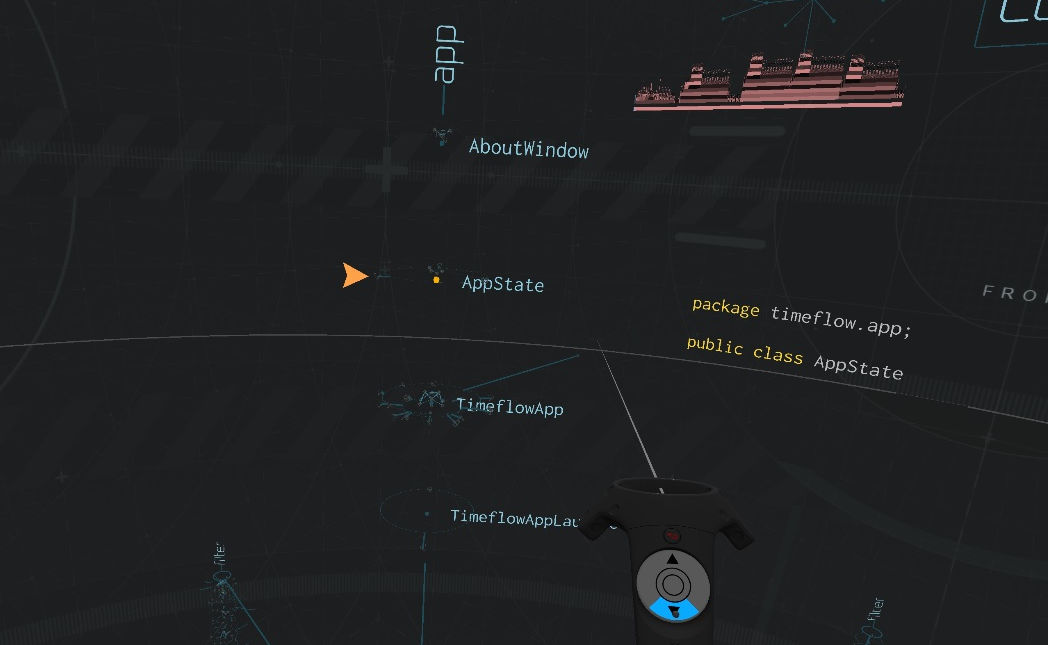
-
Open a class by pressing the center of the exploration wand trackpad (on Vive or GearVR Controller), by pressing the A button (on Rift), or tapping on the GearVR touchpad (on GearVR). The methods and fields of the class are now listed.
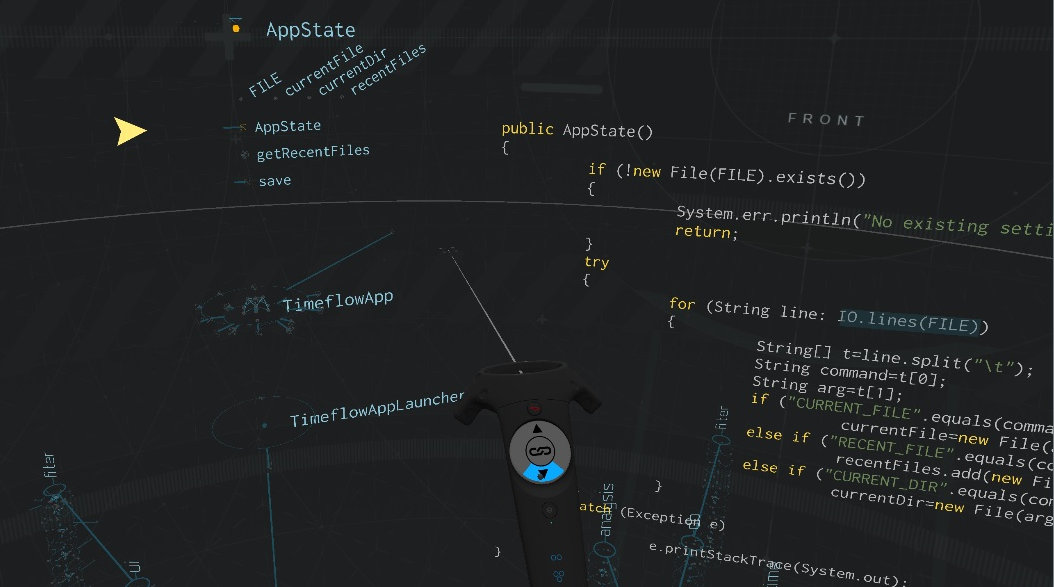
-
The source code can be moved up and down by aiming at the source code and dragging the source code with the trigger (on Vive, Rift, and GearVR Controller).


-
A selected class can be collapsed, thus collapsing its methods and fields, by pressing the exploration wand menu button (on Vive), the B button (on Rift), or the back button (on GearVR).
Collapsing a class works even when selected on one of its methods or fields.
-
An open directory can closed by pointing at the base of the directory, then pressing the exploration wand menu button (on Vive), the B button (on Rift), or the back button (on GearVR).
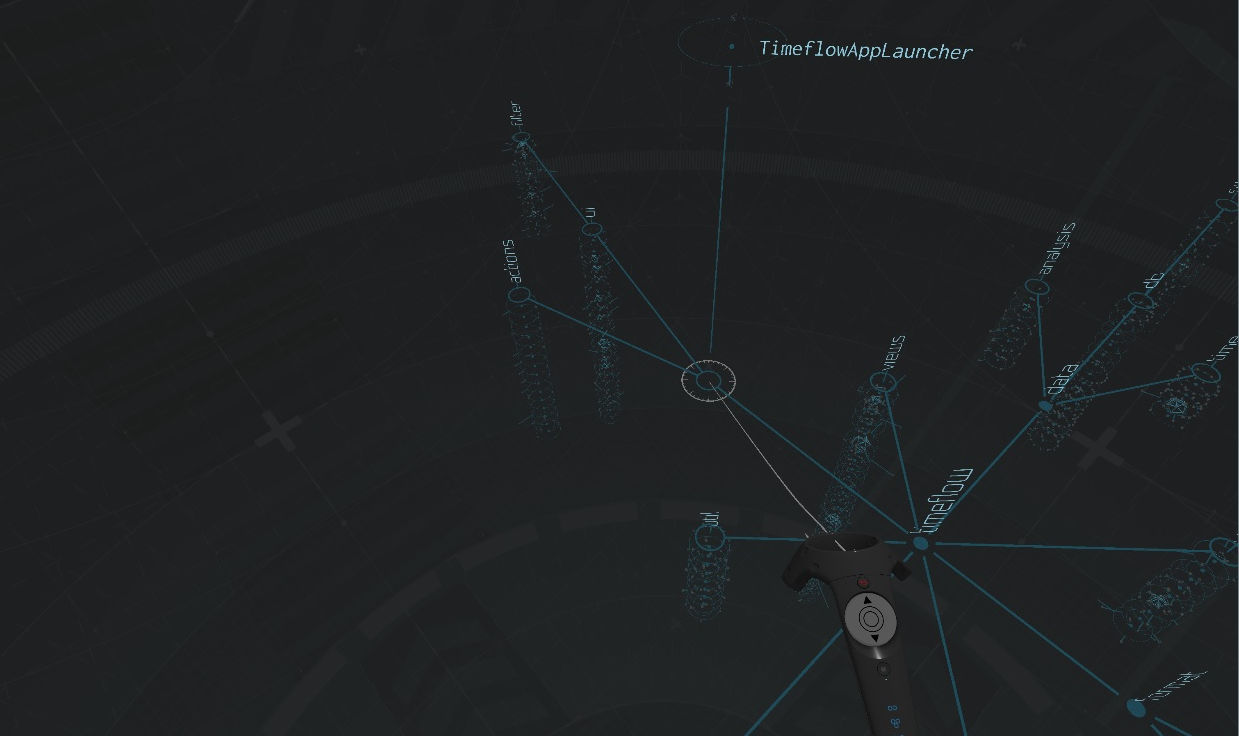

If a method calls out to other methods within the project, the source code for that method will contain selectable links. Aim at a link and select it to navigate to the called method.

-
While selected on a method or expanded class, press the "link" button on the exploration wand trackpad (on Vive or GearVR Controller) or the A button (on Rift) to view the references to and from that method or class. Not all methods and classes have references.
-
A menu will appear next to the method or class showing the different types of references available for that method or class. Press the up and down buttons on the exploration wand touch pad (on Vive or GearVR Controller), press up and down on the exploration controller joystick (on Rift) or swipe up and down on the GearVR touchpad (GearVR) to select a different type of reference.
Not all methods and classes have more than one type of reference.
-
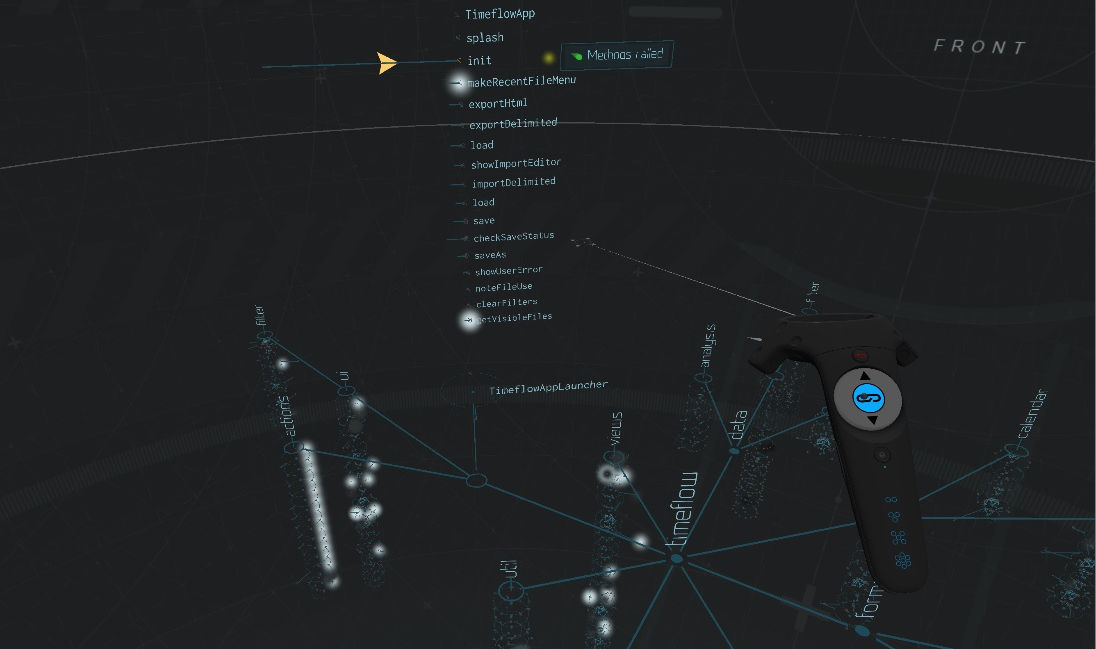
When a type of reference is selected, all referenced elements will be highlighted with a glowing particle. For example, when viewing methods called by the currently selected method, the particles are on the methods being called.
Dimmer particles represent higher-degree references. For example,when viewing methods called by the currently selected method, a dim particle shows that the current method calls a method, which calls another method, which eventually calls the method with the dim particle on it.

-
If the current project has a recorded runtime, the runtime can be viewed by finding and selecting the "EXECUTE" handle on a launcher class in the model.
-
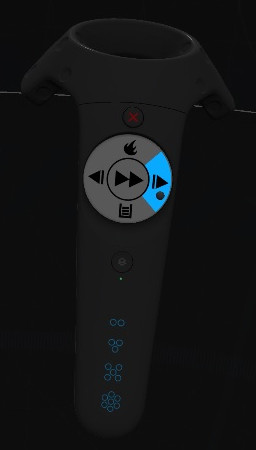
The runtime can be stepped through by pressing the "next" button on the right of the runtime wand trackpad (on Vive), pressing right on the runtime controller joystick (on Rift), or pressing right on the GearVR touchpad (on GearVR).

-
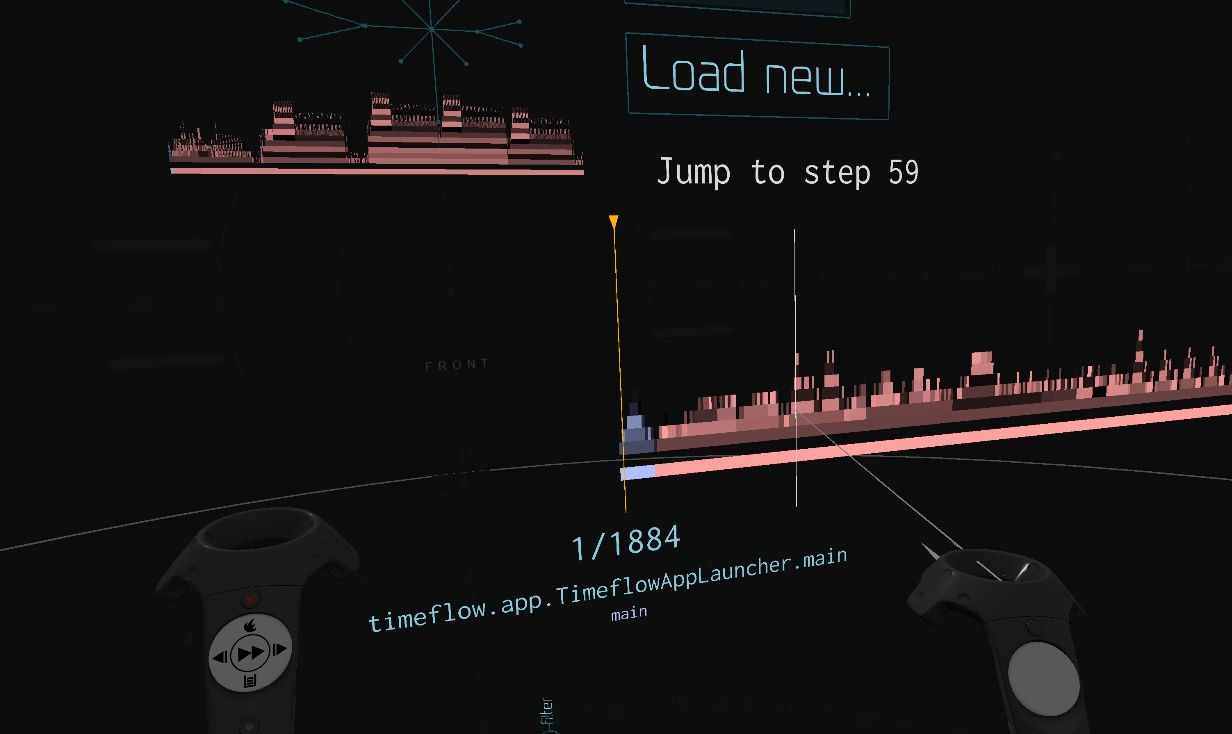
The call stacks for the entire execution are displayed in the timeline underneath the menu. Aim at any point on the timeline and select it to jump to that point in the execution.
-
The runtime can be toggled in and out of fast step mode by pressing the "fast forward" button in the middle of the runtime wand trackpad (on Vive or GearVR Controller), pressing the X button (on Rift) or tapping the middle of the GearVR touchpad (on GearVR).


- The runtime can be exited by pressing the menu button on the runtime wand (on Vive), the X button (on Rift), the back button or by selecting the EXECUTE button on the menu (on GearVR).
As objects are instantiated, they are displayed above the directory map. The objects are grouped into a tree that is organized by the order in which the objects were created (the Factory Model).
Each thread of execution is shown as a brightly colored line. If there are multiple threads executing concurrently, they will be shown in different colors. Each thread connects from method to method depending on the call stack.

Not all objects in the runtime are active on the currently executing call stacks.
-
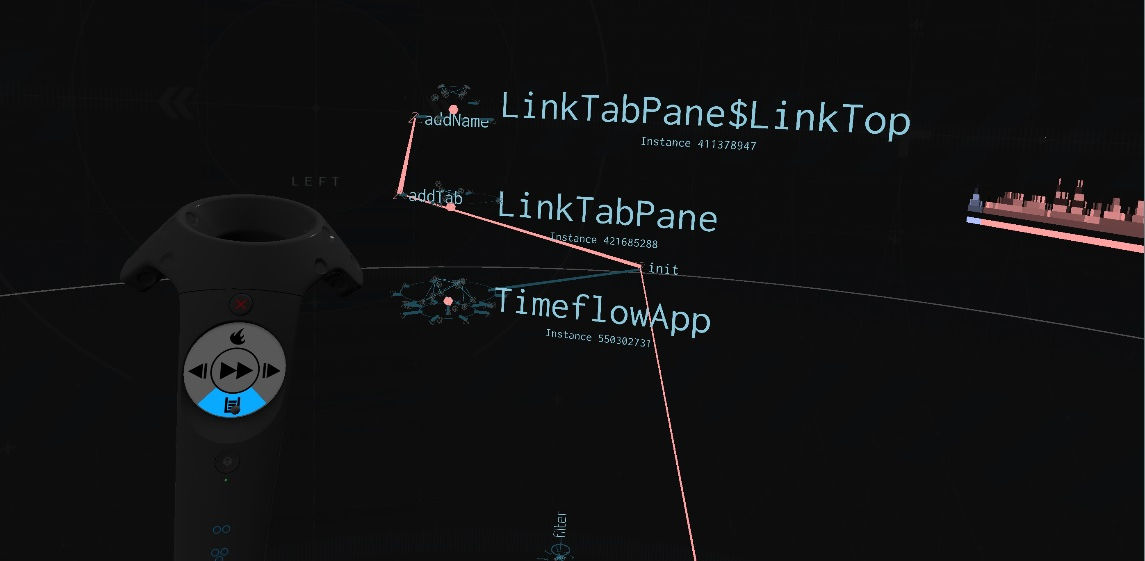
To isolate the currently executing call stacks, press the "stack" button on the runtime wand trackpad (on Vive), press down on the runtime controller joystick (on Rift) or press the down button on the GearVR touchpad (on GearVR). This initiates the Call Stack Mode.
-
To view the source code of methods on one of the call stacks, aim at the call stack and select an object on the stack. The lowest method on the object will be selected and the source code will be visible.

-
Scroll through the methods on the call stack by pressing up and down on the exploration wand trackpad (on Vive), by pressing up and down on the exploration controller joystick (on Rift).


It is possible to set a breakpoint on individual methods.
-
When not in runtime mode, navigate to a method.
-
Press the left button on the exploration wand trackpad (on Vive), press left on the exploration controller joystick (on Rift) or press the left button on the GearVR touchpad (on GearVR). This sets a breakpoint on that method, and the icon next to the method turns red.
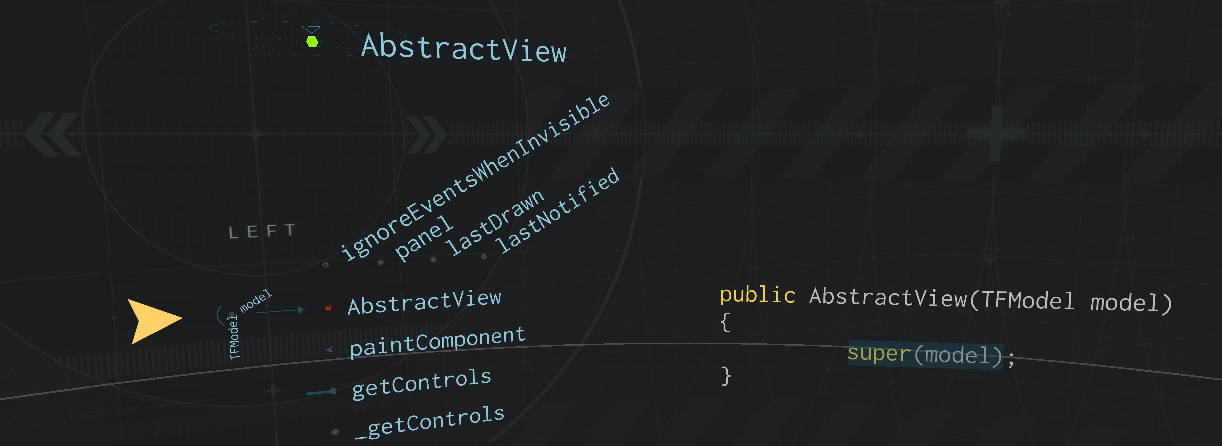
To remove the breakpoint, press the right button on the exploration wand trackpad (on Vive), press right on the exploration controller joystick (on Rift) or press the right button on the GearVR touchpad (on GearVR).
-
Switch to runtime mode. The execution timeline will now show red lines at all points in the execution where the methods with breakpoints are executed. If no lines appear, the methods with breakpoints are not executed in the particular recording being shown.
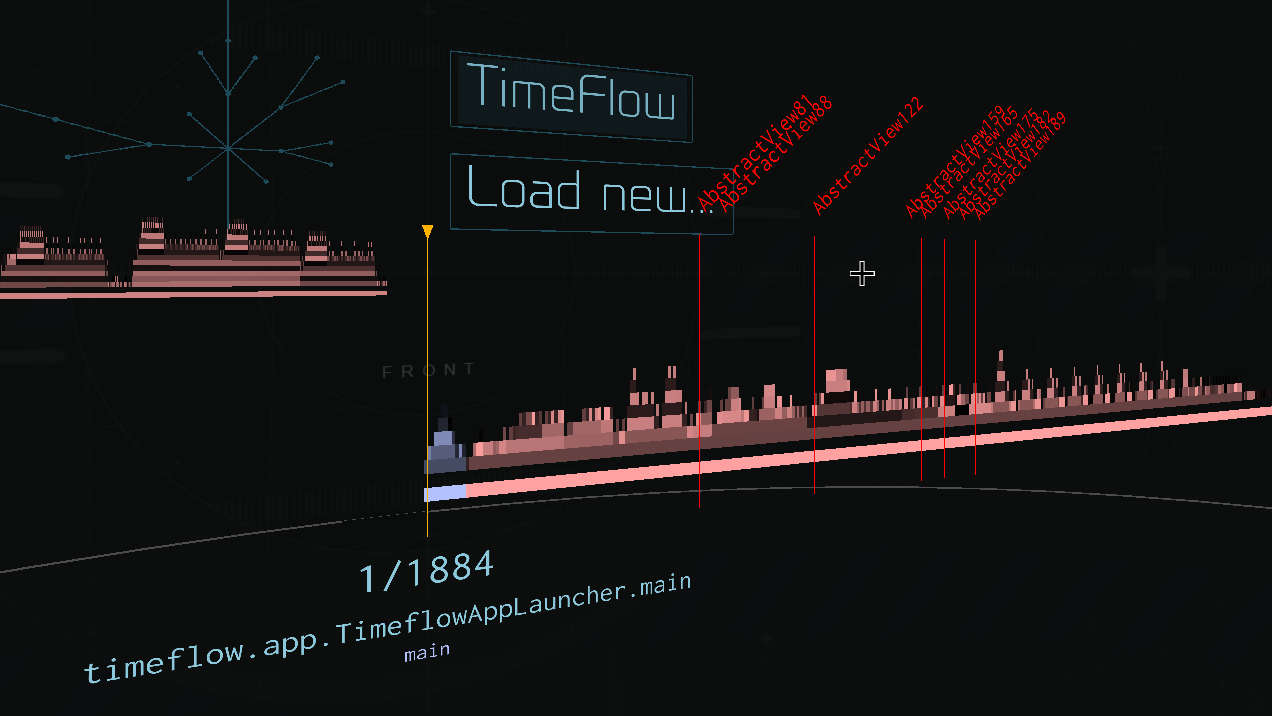
-
To jump to one of the points in time when a breakpointed method is executed, aim at one of the red lines and select the line.


If a project has a recorded runtime, then it's possible to see how many times each method in the project was called. When not in runtime mode, press the "heatmap" button on the runtime wand trackpad (on Vive) or press up on the runtime controller joystick (on Rift).

Methods with red particles on them are called the most number of times relative to other methods in the project. Methods with blue particles are not called as many times.
Method call counts are applicable for the recorded runtime associated with the project.
